Set a spending target for a team, department, cost center, location, or project, and track spend against it.
Steps
- Open Budgets and click New Budget (available from either the Dashboard or Budgets tab).
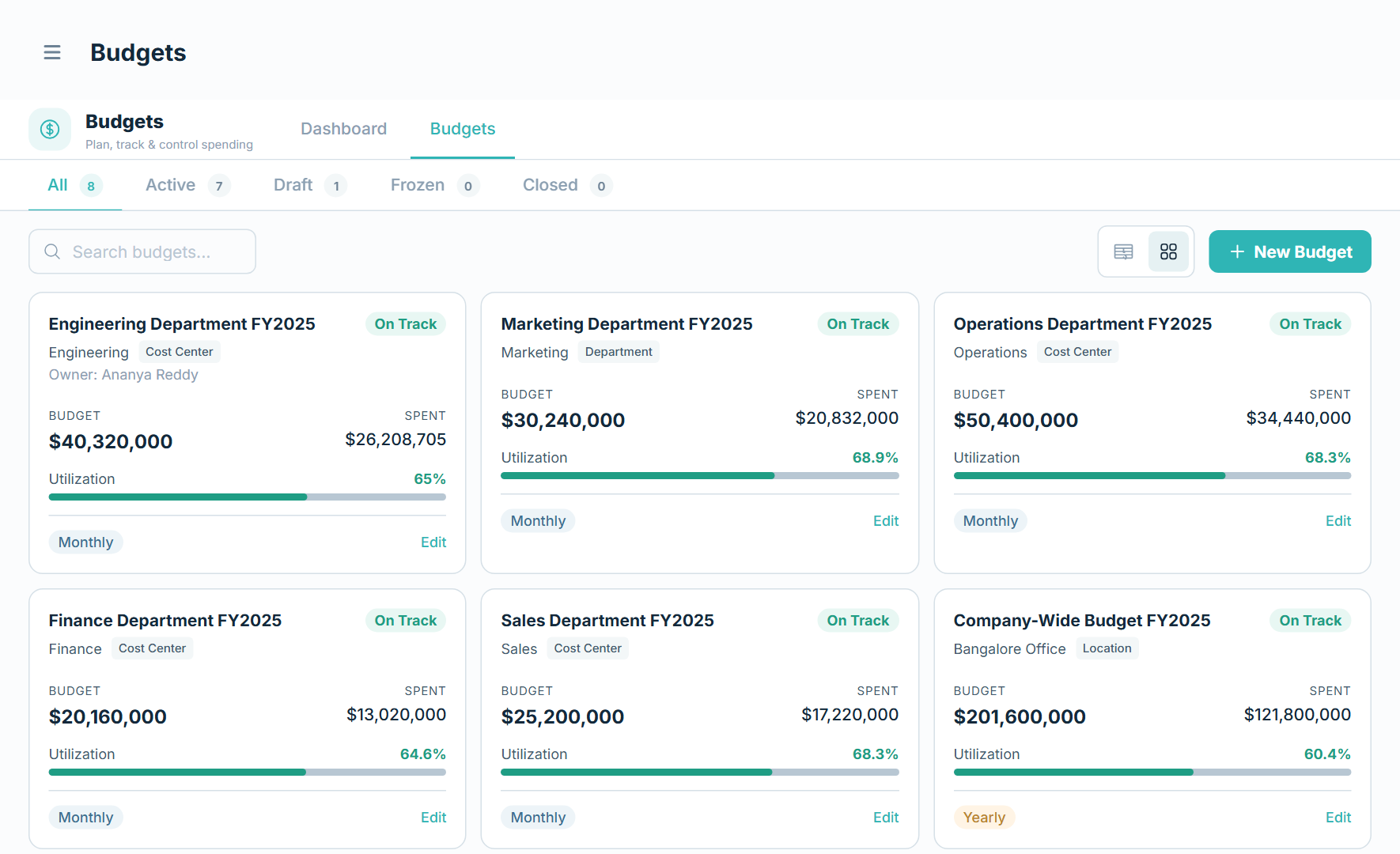
- Fill in the sections:
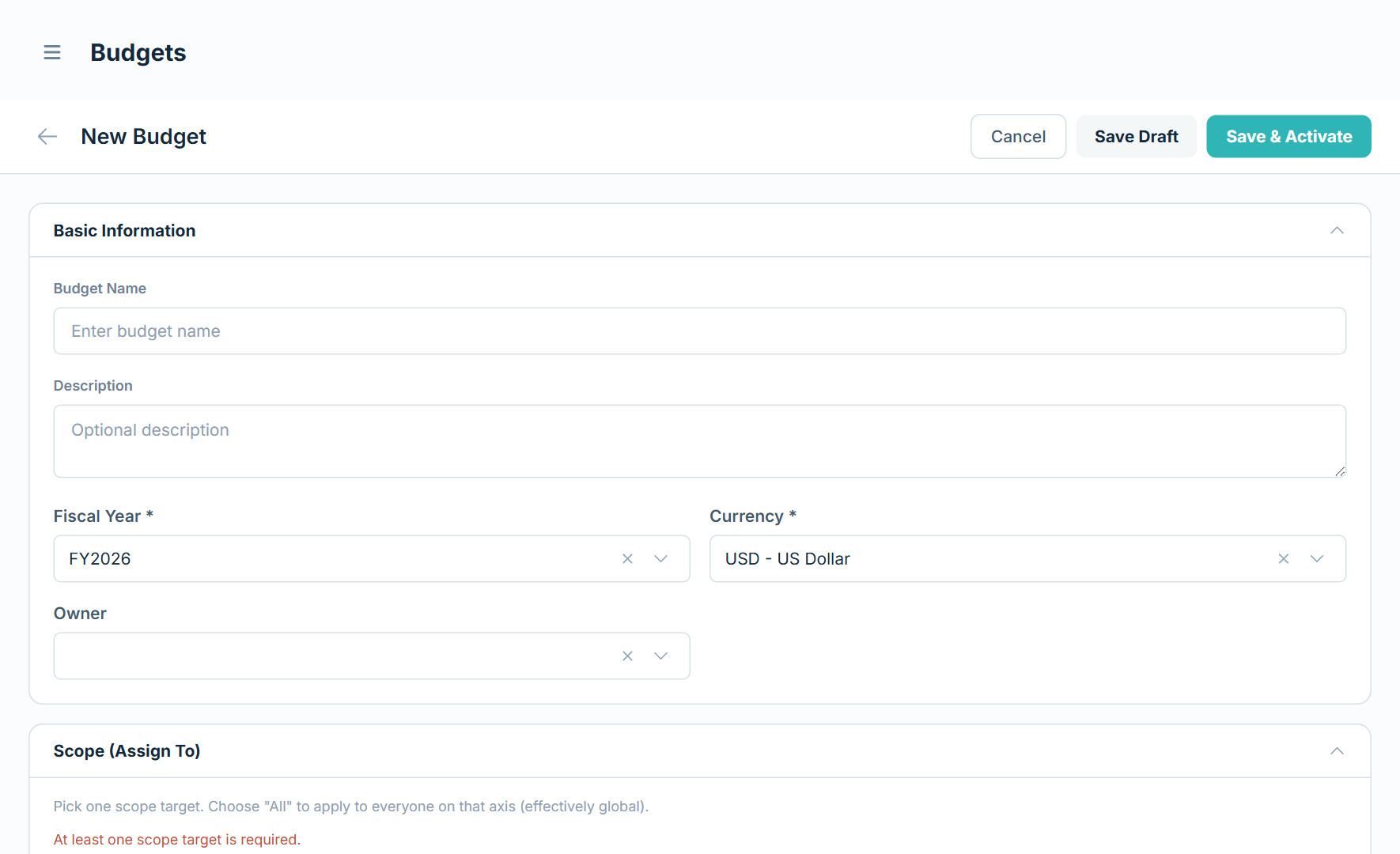
Basic Information — Budget Name, Description, Fiscal Year, Currency, and Owner.
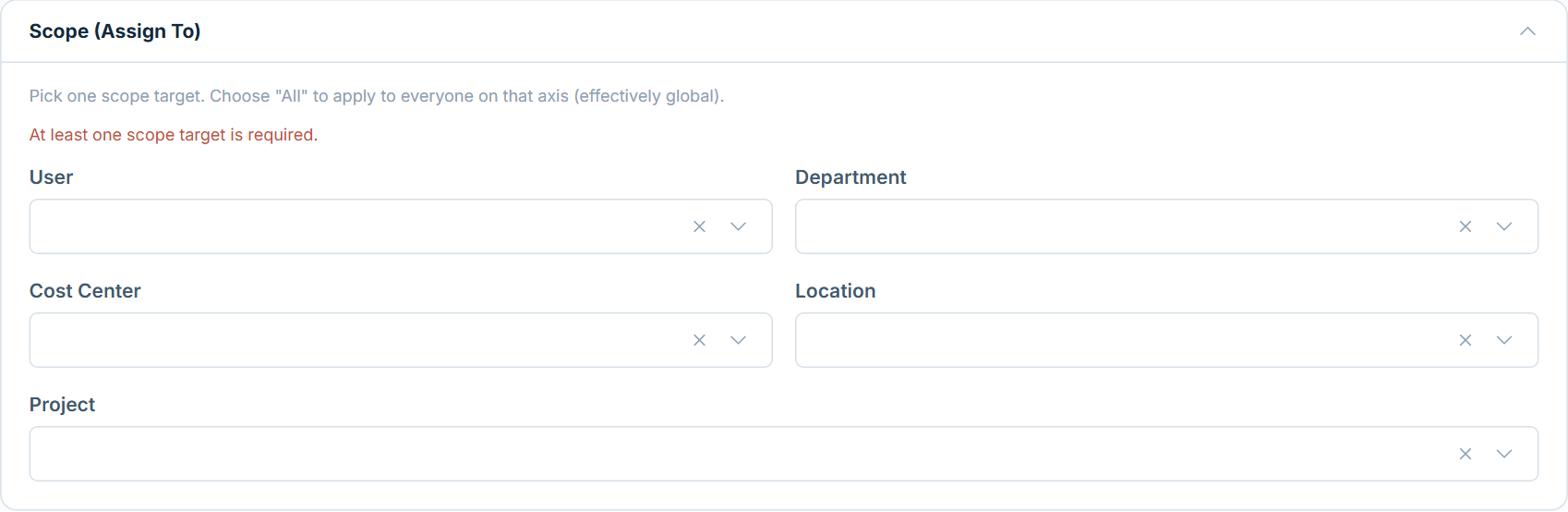
Scope (Assign To) — choose one target: User, Department, Cost Center, Location, or Project. Picking one locks the others; choose All on an axis to apply the budget to everyone. At least one scope target is required.
Period and amount — set the Budget Type (Recurring or One-Time), Period Type (Monthly, Quarterly, or Yearly), Total Budget Amount, and Start/End Date. Optionally tick Distribute evenly across periods, Allow rollover, or Shared limit.
Budget Allocation — split the total across periods in the grid. Use Add Category to add rows (categories expand to show vendors). The Unallocated row shows anything not yet assigned.
Overspend Controls — set the policy and utilization thresholds. See Set overspend controls and thresholds.
GL / Accounting — pick the GL account.
- Click Save Draft to come back later, or Save & Activate to start tracking.
Budgeting a project
If you set the Scope to a Project, Tera prefills the start/end dates, currency, and total amount from that project's plan, and adds a WBS Allocation grid. See Budget a project across its WBS.
Note: A budget covers a single fiscal year. For work that spans years, create one budget per fiscal year.